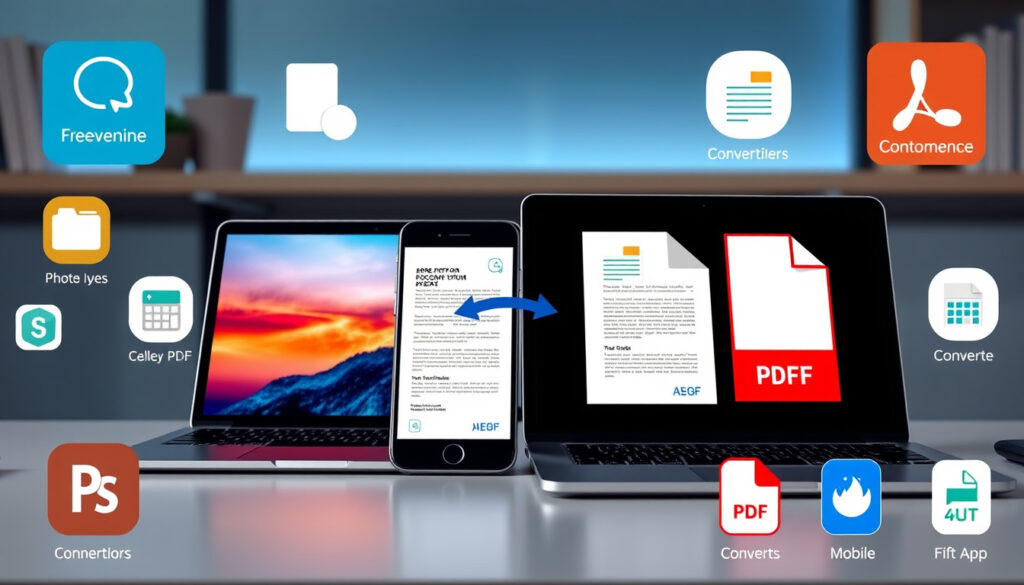
Photo to PDF: Free Converters Online and iPhone Apps
If you’ve ever needed to attach a photo to an email or upload one to a form, you already know the frustration: the image won’t upload because it isn’t a PDF. That’s a surprisingly common hiccup, and the good news is you don’t need expensive software to fix it. This guide walks through the fastest ways to convert any photo to PDF—for free, on your iPhone or browser, without watermarks or sign-ups.
Free Web Converters: ILovePDF, PDF24, SmallPDF · Mobile Apps Available: Google Play Image to PDF · No Installation Needed: For web converters · Supported Formats: JPG, PNG, TIFF, GIF
Quick snapshot
- Adobe Acrobat, PDF24, and Smallpdf explicitly state no watermarks on free conversions
- Online converters require no software installation and work directly in iPhone Safari (Adobe Acrobat)
- Privacy features vary: some use cloud processing, others offer offline browser-based conversion (Adobe Acrobat)
- Whether free tier usage limits are enforced consistently across all tools
- Exact performance comparison data for batch conversions on iPhone Safari
- Long-term sustainability of completely free services without watermarks
- PDFGadget tutorial references iPhone use in 2025, fully browser-based
- App Store listings remain active for photo-to-PDF converter apps
- Browser-based tools continue expanding mobile optimization for iPhone users
- Batch conversion features becoming standard across free web converters
Here’s how the leading free tools stack up on the features that matter most.
| Feature | Value |
|---|---|
| Free Web Converters | ILovePDF, PDF24, SmallPDF, PDFCreator |
| App Availability | Google Play |
| Installation Free | Online tools |
| Image Formats | JPG, PNG, GIF, TIFF |
How to Convert Picture to PDF on iPhone
You can convert a picture to PDF on iPhone either through the built-in tools or by using free apps from the App Store.
Built-in iPhone tools
The fastest iPhone method uses the native Files app. Open the Photos app, select your image, tap the Share button, and choose “Print.” Pinch outward on the print preview to generate a PDF that saves directly to Files. This works for single images without installing anything.
Apple’s built-in method is genuinely free and requires no downloads, but it handles one image at a time—fine for quick tasks, less practical if you’re merging multiple photos.
Free apps from App Store
For more flexibility, the Photos to PDF Converter app (App Store ID: id1534140649) supports HEIC, HEIF, JPG, and PNG formats with PDF preview before sharing. It includes in-app purchases for additional features but handles the core conversion free.
If you’re switching from HEIC photos (iPhone’s default format), many web converters struggle with HEIC files—so an app that natively handles HEIC saves the step of converting the image first.
JPG to PDF
JPG is the most common image format, so free JPG-to-PDF converters have proliferated online. Here’s what to expect from the leading options.
Online converters
Adobe Acrobat offers a free online JPG-to-PDF converter with no size limits and no watermarks. The process is straightforward: select your file, and the tool auto-converts it for immediate download on iPhone.
PDF24 Tools converts JPG, PNG, GIF, and TIFF with no limits or watermarks. You can drag-and-drop to reorder images before PDF creation—a handy feature when merging multiple photos.
Smallpdf handles JPG, GIF, BMP, TIFF, and PNG, all browser-based with no CPU usage on your device. It also lets you adjust size, orientation, and margins before conversion.
PDF24 processes files in the cloud despite requiring no installation—fine for non-sensitive images, but worth noting if privacy is a concern.
Adjusting orientation and margins
Smallpdf stands out for its pre-conversion adjustments. You can crop, rotate, or tweak margins right in the browser before hitting convert. PDF24 offers similar drag-and-drop reordering, though margin tweaking is more limited.
Image to PDF Converter Free Download
Several desktop and mobile options exist if you prefer not to use web-based tools.
Google Play apps
For Android users, the Google Play store offers dedicated image-to-PDF converter apps that work offline. These typically support batch conversion and save PDFs directly to your device storage without cloud processing.
Desktop free tools
PDFCreator Online and similar desktop utilities provide more control over output quality and metadata. However, they require installation—a trade-off that makes sense only if you convert photos to PDF frequently.
Photo to PDF Converter Free
The market for free converters is crowded, but not all deliver on the “no watermark” promise. Here’s where the major tools stand.
Top free online tools
PDF24 Tools explicitly markets itself as “100% free” with no watermarks and no registration required. Canva’s free JPG-to-PDF converter also adds no watermarks and preserves quality while reducing file size.
No watermark guarantees
Most tools explicitly advertise no watermarks on their free tier. Adobe states this plainly, as do PDF24 and Canva. However, it’s worth reading the fine print: some services reserve the right to change free-tier policies.
“Use Canva’s free JPG to PDF converter to touch up or edit your photos without lowering their quality or worrying about unnecessary watermarks.” — Canva official site
Photo to PDF Converter Online
Online converters eliminate software installation and work across devices—including iPhone Safari.
Upload and convert steps
The typical workflow: visit the converter website, drag your JPG or PNG file onto the upload area, wait a few seconds for conversion, then download the PDF. No registration is needed for basic use on most platforms.
FreeConvert.com supports input from URL, Dropbox, or Google Drive in addition to local files. It also uses 256-bit SSL encryption and auto-deletes files after conversion for added privacy.
Privacy-conscious users should note that PDF24 processes files in the cloud, while PDFGadget keeps everything on-device. If you’re converting personal photos, a tool that never uploads files may matter more than speed.
Batch processing
PDF4me handles up to 150 images in a single batch conversion—useful if you’re merging an entire photo album. PDF24 also supports drag-and-drop reordering, letting you arrange photos before the final PDF is generated.
“Free online tool to convert JPG and other images to PDF. No limits and no watermarks.” — PDF24 Tools official site
How to Convert Multiple Photos to PDF
Merging several photos into one PDF is where web-based converters shine compared to built-in iPhone tools.
Steps for merging photos online
- Open your chosen converter (PDF24, Smallpdf, or PDF4me) in Safari or Chrome
- Select multiple images from your device or cloud storage
- Drag to reorder if the tool supports it
- Click Convert and download the merged PDF
PDF4me handles up to 150 images in a single batch, while PDF24 and Smallpdf handle smaller batches without explicit limits on free tiers.
Batch conversions work seamlessly on desktop browsers, but iPhone Safari may struggle with large batches due to memory limits. If you’re merging more than 20 photos, switching to a desktop browser is worth considering.
Mobile versus desktop experience
Mobile-first tools like CamScanner are designed for on-the-go use, with no installation required and browser-based drag-and-drop. CamScanner works on any web browser, making it suitable for mobile use on transit or in situations where you’re away from a computer.
Upsides
- Adobe Acrobat, PDF24, and Smallpdf add no watermarks to free conversions
- Online converters require no installation and work on iPhone Safari
- Batch conversion handles up to 150 images with PDF4me
- Privacy options range from cloud processing (most) to on-device-only (PDFGadget)
- Adjustable orientation, margins, and order on most tools
Downsides
- PDF24 and most tools process files in the cloud—privacy trade-off
- Built-in iPhone tools only handle single images
- Large batch conversions may strain iPhone Safari memory
- HEIC format (iPhone default) requires conversion or app support
- Some free-tier policies may change without notice
Related reading: Microsoft Outlook Login Guide · How to Find Tax File Number
For photos saved as JPGs, a reliable free JPG to PDF converter delivers quick no-signup conversions akin to top online tools and iPhone apps.
Frequently Asked Questions
Is photo to PDF conversion safe?
Most reputable tools (Adobe, PDF24, Smallpdf) use standard web security. FreeConvert adds 256-bit SSL encryption and auto-deletes files after conversion. However, cloud-based tools inherently require uploading your files to servers, even briefly.
Do free converters add watermarks?
Adobe Acrobat, PDF24, Smallpdf, and Canva explicitly state no watermarks on their free tiers. Always verify on the specific tool’s page before converting important documents.
Can I convert multiple photos at once?
Yes. PDF4me handles up to 150 images in one batch conversion. PDF24 and Smallpdf also support multi-image uploads with drag-and-drop reordering before merging.
What image formats work for PDF?
The most common formats are JPG, PNG, GIF, BMP, and TIFF. Some tools also support HEIC and HEIF (iPhone defaults), though dedicated apps handle these more reliably than web converters.
Is there a desktop photo to PDF tool?
PDFCreator Online and similar desktop utilities offer more control over output quality and metadata, but require software installation. They’re worthwhile if you convert photos to PDF regularly.
How large can images be for conversion?
Most web converters handle files up to their stated limits. Adobe’s tool explicitly mentions no size limits. PDF4me focuses on batch quantity (150 images) rather than per-file size restrictions.
Does conversion preserve image quality?
Canva specifically notes that its converter reduces file size while preserving quality. Most tools maintain original resolution unless you select compression options.
For iPhone users who need a photo as a PDF right now, Apple’s built-in method is the quickest path. For batch merging or adjustable settings, the free web converters (PDF24, Smallpdf, or Adobe) handle the job without watermarks or sign-ups. Privacy-conscious users should consider PDFGadget for on-device processing, while those with large photo albums will find PDF4me’s 150-image batch limit most practical.
More related posts
 Matthew Modine: Career, Net Worth, and Millie Bobby Brown
 Michael Urie: Sexuality, Relationship, and Name Confusion Facts
 Laurence Fishburne: Biography, Net Worth, Movies, and Personal Life
 Walking Pad Australia: Top Models & Weight Loss Tips
 Aaron Naughton: Contract, Age, Family & AFL Stats
 Nora Fatehi: Facts About Her Relationship, Religion, Ethnicity
 Chris Stapleton: Verified Facts, Illness, Wife & Tour
 Cocobella Yoghurt Recall: Milk Allergen in Dairy-Free Products
